-
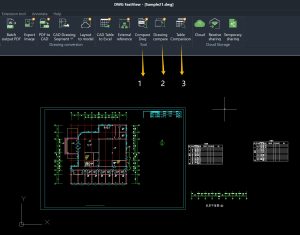
Drawing Data Comparison
-
Drawing Appearance Comparison
-
Table Comparison
 If you are now on mobile phone, you can enter your email below and you will receive a download link of the Windows version or if you already installed the free mobile version, just click the upgrade button to unlock all features and remove all ads on mobile version. Whatever you subscribe on Windows or Mobile(Google play or iOS appstore), one account can be used on multiple platforms such as Web, Windows or Mobile and the annotations or dimensions you made on the drawing can be synced across different devices and platforms.